Connecting to Google Spreadsheets
To enable this integration, you'll need to authenticate with Google using OAuth 2.0.
Go to the Integrations page — this link takes you straight to the Google Spreadsheets connection flow. Click Connect to get started.
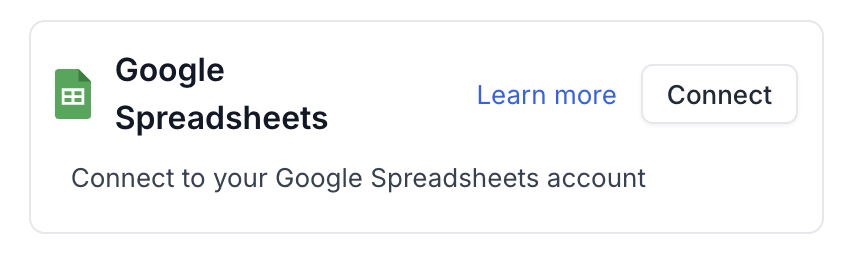
A screen will appear prompting you to authorize Syft to access your Google account. Click "Allow" to continue.
Using Google Spreadsheets in Motions
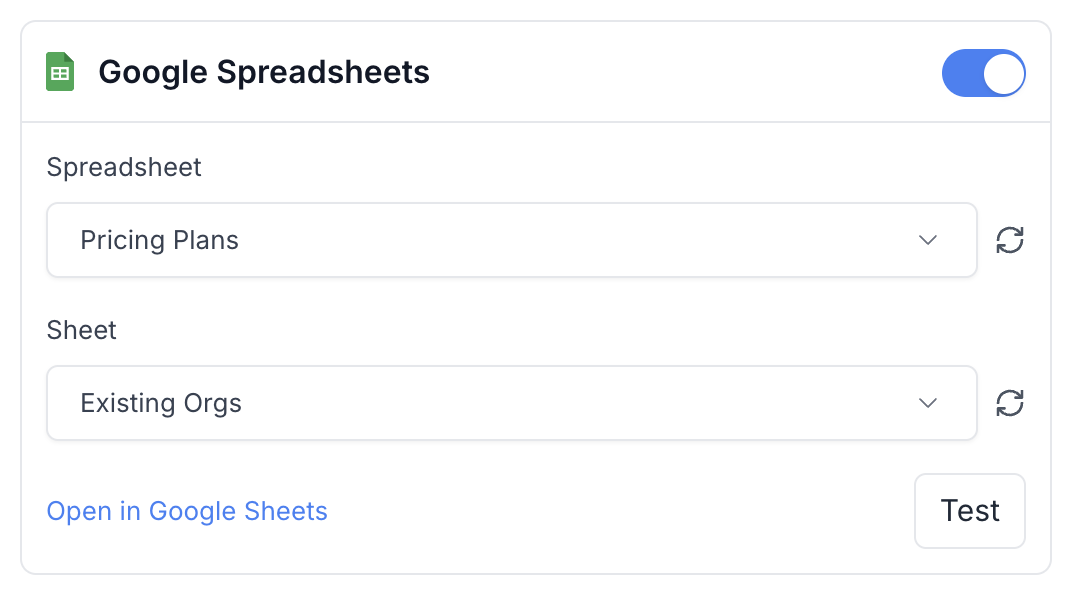
Syft can export account and lead data to Google Spreadsheets through motions. There are a couple of options that control what is automatically exported:
- Identify Leads and Push: Enable this by creating a leads motion. This will export identified leads to your specified Google Spreadsheet.
- Push Leads and Their Actions: Enable this by creating a sessions motion. This will export both leads and their session data to your Google Spreadsheet.
Troubleshooting: Unable to Connect or Sheet Stopped Updating
You may see one of these problems:
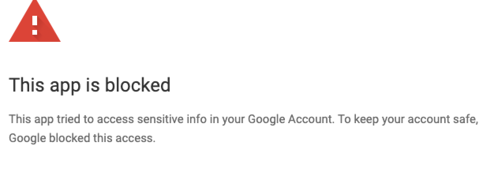
- You can't connect. Google shows a "This app is blocked" error when you try to connect Google Spreadsheets.
- An existing connection stopped working. Google Spreadsheets was connected, but new rows stopped appearing in your sheet, or the integration now shows as disconnected in Syft.
Both usually happen because of your Google Workspace's third-party app access settings, for example after an admin restricts which apps users can connect. When an existing connection stops working, your motions keep running and the data stays in Syft; only the write to the sheet fails.
To fix it, follow these steps.
Step 1: Allow Syft in Your Google Workspace
A Google Workspace administrator must complete this step.
- Log in to the Google Admin console. In the left-hand navigation menu, click Security, then click API controls.
- Click MANAGE THIRD-PARTY APP ACCESS.
- Under "Configured apps," click Configure new app.
- In the search bar, enter the following Client ID, click Search, and select "Syft Data" from the results:
640418593024-p1r79rpca6befn8jpirr96d8dkc7tjer.apps.googleusercontent.com
- Select "All in [your organization] (all users)" and click Continue.
- Select "Trusted" (or "Specific Google Data" if preferred) and click Continue.
- Review the settings and click Finish. Syft Data should now appear under "Configured apps."
Step 2: Connect Google Spreadsheets Again
Go to the Integrations page and connect Google Spreadsheets. If it was already connected, connect it again so Syft gets a fresh authorization.
Step 3: Retry Missed Rows
If your sheet had stopped updating, open each affected motion, go to the Failed tab, and click Retry All. Syft writes the missed rows to your sheet.
Exported Fields
The following objects and their fields are exported to Google Spreadsheets:
Company Object
Company - Company Name
name
The name of the company Available always
Company - Company Domain
domain
The primary domain of the company website Available always
Company - Company Website
website
The full URL of the company website Available always
Company - Street Address
address
The street address of the company Available always
The city where the company is located Available always
Company - Metropolitan Area
city_metro_area
The metropolitan area where the company is located Available always
Company - State/Province
state
The state or province where the company is located Available always
The country where the company is located Available always
Company - Postal/ZIP Code
zip
The postal or ZIP code of the company Available always
Company - Phone Number
phone
The main phone number of the company Available always
Company - Industry
industry
The industry the company operates in Available always
enumeration
Aerospace & Defense
Air Freight & Logistics
Airlines
Automotive
Banks
Company - Number of Employees
employees
The estimated number of employees at the company Available always
Company - Annual Revenue
annualRevenue
The estimated annual revenue of the company Available always
Company - Founded Year
foundedYear
The year the company was founded Available always
Company - Lifecycle Stage
lifecycleStage
The current lifecycle stage of the company Available always
enumeration
Prospect
Opportunity
Lost Opportunity
Customer
Company - LinkedIn URL
linkedin
The LinkedIn company page URL Available always
Company - Syft Account URL
syft_account_url
The URL of the company in Syft Available always
Company - Matched ICPs
syft_icp
Syft ICPs that match this company Available always
Company - Matched Personas
syft_persona
Syft Personas of the visitors from this company Available always
Company - Total Sessions
syft_sessions
Total number of sessions from this company Available always
Company - Unique Visitors
syft_visitors
Number of unique visitors from this company Available always
Company - First Seen
syft_first_seen
First time when someone from this company visited the website Available always
Company - Last Seen
syft_last_seen
Last time when someone from this company visited the website Available always
Lead Object
The email address of the contact Available always
Contact - First Name
firstName
The first name of the contact Available always
Contact - Last Name
lastName
The last name of the contact Available always
The job title of the contact Available always
The gender of the contact Available always
Contact - Phone Number
phone
The phone number of the contact Available always
Contact - Street Address
address
The street address of the contact Available always
The city where the contact is located Available always
Contact - Metropolitan Area
city_metro_area
The metropolitan area where the contact is located Available always
Contact - State/Province
state
The state or province where the contact is located Available always
The country where the contact is located Available always
Contact - Postal/ZIP Code
zip
The postal or ZIP code of the contact Available always
The personal website of the contact Available always
Contact - LinkedIn URL
linkedin
The LinkedIn profile URL of the contact Available always
Contact - ID Confidence
syft_enrichment_confidence
Confidence level of the ID data (Very High, High, Medium, Low) Available always
Contact - Matched Personas
syft_persona
Syft Personas that match this contact Available always
Contact - First Seen
syft_first_seen
First time when the contact visited the website Available always
Contact - Last Seen
syft_last_seen
Last time when the contact visited the website Available always
Contact - Salesforce Contact ID
salesforce_contact_id
The Salesforce Contact ID of the contact Available always
Contact - Salesforce Lead ID
salesforce_lead_id
The Salesforce Lead ID of the contact Available always
Contact - HubSpot Contact ID
hubspot_contact_id
The HubSpot ID of the contact Available always
Contact - Apollo Contact ID
apollo_contact_id
The Apollo ID of the contact Available always
Contact - Outreach Contact ID
outreach_contact_id
The Outreach ID of the contact Available always
Contact - All Email Addresses
emails
All email addresses associated with this contact Available always
Session Object
Session - Active Time
active_time
Duration of active time spent during the session Available always
Session - Matched Signals
signals
List of signals/intents matched during the session Available always
Session - Pages Visited
pages_visited
List of unique pages visited during the session Available always
Session - Referrer
referrer
The referrer source for this session Available always
Session - UTM Source
utm_source
UTM source parameter tracking the traffic source Available always
Session - UTM Medium
utm_medium
UTM medium parameter tracking the marketing medium Available always
Session - UTM Campaign
utm_campaign
UTM campaign parameter tracking the marketing campaign Available always
Session - UTM Channel
utm_channel
Derived traffic channel (e.g., Direct, Paid Search, Organic Social) Available always
The address of the geographic location information of the session Available always
Session - Purchase Intent
syft_purchase_intent
Purchase intent determined for this session Available always
Session - Enrichment Confidence
enrichment_confidence
Confidence score for the enriched session data Available always
Session - Start Time
start_time
Start time of the session Available always
Session - End Time
end_time
End time of the session Available always
LinkedIn Object
LinkedIn - LinkedIn Action
action
Type of action performed on LinkedIn Available always
string
Like
Comment
Sent Message
Received Message
LinkedIn - LinkedIn Post ID
post_id
Identifier of the LinkedIn post Available always
LinkedIn - LinkedIn Post URL
post_url
URL of the LinkedIn post Available always
LinkedIn - Timestamp
timestamp
Timestamp of the LinkedIn interaction Available always