Salesforce
Connect Salesforce
Go to the Integrations page. This link takes you straight to the Salesforce connection flow. Select Connect to get started.

Sign in as the Salesforce user Syft should act as, then select Allow to authorize the Syft connected app. Syft then opens a Salesforce Installed dialog. Select Save to finish setup: this is the step that checks for, and if needed creates, Syft's custom fields (see Custom-field setup).
Syft connects to production by default. To connect a sandbox or a specific My Domain login host, change the environment before you connect (see Choose the Salesforce environment).
Configure a least-privilege integration user
The user who connects Syft does not need the System Administrator profile. We recommend a dedicated integration user with:
- The Salesforce Integration user license and the Salesforce API Integration permission set license, where available.
- An API Only profile. API Only prevents Salesforce UI login but still allows the user to complete Syft's OAuth flow.
- API Enabled.
- Access to the Syft connected app.
- The object, field, and record access listed in Ongoing object and field permissions.
- All of the above granted through permission sets or a permission set group, not by editing a shared profile.
Do not leave System Administrator or other administrative permissions on the integration user. Syft runs unattended with a long-lived refresh token, and the OAuth request includes the full scope, so the token can use every permission the user holds. Anyone who obtains the token, or a fault in the integration, could use standing admin access to read, change, or delete data across the org and alter its configuration.
Authorize the connected app when admin approval is required
Salesforce orgs with API Access Control, or a connected-app policy of Admin approved users are pre-authorized, block the first authorization until an administrator approves the app. To connect:
- Temporarily allow the integration user to authorize uninstalled connected apps.
- Complete the Syft OAuth flow.
- Install the Syft connected app in your org and enable it on a permission set assigned to the integration user.
- Remove the temporary authorization permission.
Grant setup permissions only for the setup step
Some administrative permissions are used only by the Save step after you connect. Grant them for that step and remove them as soon as setup completes. None of them are used for ongoing sync, and holding them permanently is a standing security risk.
| Permission | Setup step that uses it | When you can skip it |
|---|---|---|
| View Setup and Configuration | Reading the connecting user's profile and the existing field definitions on Account, Contact, and Lead through the Tooling API, which Salesforce normally gates behind this permission. Runs on every setup. | Needed for setup even when the fields already exist. Remove it after setup completes. |
| Customize Application | Creating Syft's custom fields, or changing a field whose type does not match the specification, through the Metadata API. | Skip it when an administrator has already created every custom field with the exact type in the spec. |
| Manage Profiles and Permission Sets | Granting read and edit field-level security on the connecting user's profile for fields Syft just created or changed. | Skip it when every field already exists and you grant field access through a permission set. |
Syft does not use Modify All Data, View Roles, Manage Custom Permissions, or Manage Translation, and does not need Delete, View All, or Modify All on any object. Syft never deletes Salesforce records.
Configure sharing
Salesforce sharing still applies to the integration user. With private sharing, Syft sees only records shared with the integration user. Syft cannot match a record it cannot see, so a Motion that creates records can create a duplicate of a record hidden from the integration user.
Custom-field setup
Syft writes its data into custom fields on Account, Contact, and Lead. Many orgs deploy metadata only through change control. In that case, create the fields yourself from the custom-field specification and grant the integration user read and edit access through a permission set before you select Save.
When you select Save, Syft:
- Looks up the connecting user's profile (by the user's email) and reads the existing field definitions on Account, Contact, and Lead.
- Creates any Syft custom field that is missing. If a field already exists with a different type, Syft changes it to the type in the spec. Fields that already match are left alone.
- Grants read and edit field-level security on the connecting user's profile, but only for fields it created or changed in step 2. Other profiles are not updated, so grant access to other users through a permission set if they need to see Syft fields.
- Checks that every mapped custom field now exists, and removes mappings to fields that do not exist from your sync settings.
What this means in practice:
- Every field already exists with the expected type: no fields are created and no profile is edited. Setup completes with only View Setup and Configuration and API access.
- Syft cannot grant field-level security (for example, the user lacks Manage Profiles and Permission Sets): setup still completes if the fields exist. Grant read and edit access through a permission set. Without it, writes to those fields fail and the Salesforce card shows a warning.
- Syft cannot create the fields (for example, the user lacks Customize Application): the dialog shows Failed to create custom Syft properties and reappears until setup succeeds. The connection itself stays active and reads continue, but Syft cannot write its data until the fields exist.
The Contact Salesforce Company ID mapping is the standard AccountId lookup, not a custom field.
Exporting data to Salesforce
Syft can export account and visitor-level data to Account, Lead, and Contact records. There are a couple of options that control what is automatically exported:
-
Update existing Accounts and Leads: When enabled, this option enriches your existing Account and Lead records with behavioral data in Syft's custom fields (see the custom-field specification). This option is enabled by default.

-
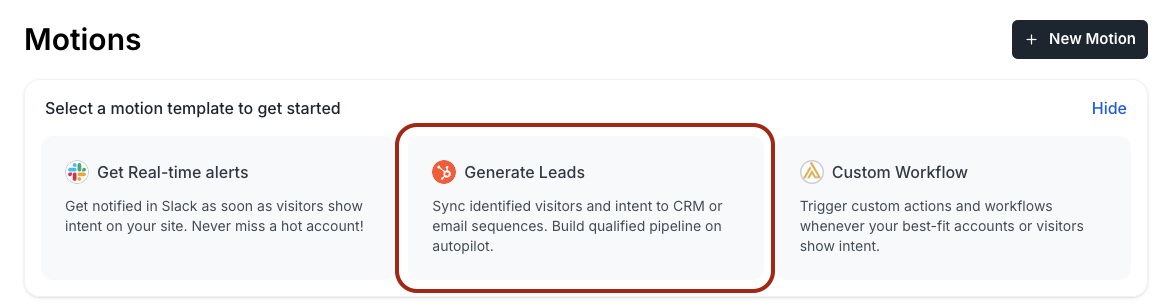
Create new Leads for identified visitors: Enable this option by creating a CRM motion.
Pipeline stage
Syft computes a Pipeline Stage for each account from Salesforce Account and Opportunity data. Use this stage to qualify and prioritize accounts for human review, or to trigger Motions. Syft looks at the account's most recent opportunity by close date, and evaluates the stages in this order:
| Stage | Condition |
|---|---|
| Customer | Account Type is exactly Customer, or the most recent opportunity is won |
| Opportunity | The most recent opportunity is still open |
| Lost Opportunity | The most recent opportunity is closed and not won |
| Prospect | The account exists in Salesforce |
The Customer match is exact and case-sensitive. A type such as Customer - Direct does not count. Because only the most recent opportunity is used, an account with an earlier won deal and a later lost one shows Lost Opportunity unless its type is Customer.
Security, permissions, and data access
This section describes exactly how Syft uses Salesforce: which OAuth scopes and permissions are required, and what Syft reads and writes. Share it with your security or IT team when reviewing the integration.
OAuth scopes Syft requests
When you select Connect, Syft starts Salesforce's OAuth 2.0 web server flow against your org's login host (production, sandbox, or a configured My Domain host). The authorize request asks for these scopes (Salesforce UI label, then scope value):
| Salesforce label | Scope value | Why Syft requests it |
|---|---|---|
| Manage user data via APIs | api | REST and SOAP calls against Account, Contact, Lead, Opportunity, User, Profile, and related Metadata and Tooling APIs |
| Access the Salesforce API Platform | sfap_api | Access to Salesforce API Platform endpoints used by the connected app configuration |
| Access the identity URL service | id | Identity and userinfo for the connecting user (org and user identifiers) |
| Perform requests at any time | refresh_token | Long-lived refresh token so Syft can sync without re-prompting the user |
| Full access | full | Broad access equivalent to the connecting user's permissions (covers REST, Metadata, and Chatter Connect calls Syft makes) |
| Access unique user identifiers | openid | OpenID Connect identity token alongside the access token |
All of these scopes are requested at connect time. Syft does not request additional scopes later for individual features.
OAuth scopes do not override the connecting user's Salesforce permissions. The full scope lets Syft use the access the user already has. It does not grant System Administrator privileges, or access to objects, fields, and records the user cannot access.
Official Salesforce references:
Ongoing object and field permissions
OAuth scopes alone are not enough: Salesforce still enforces the integration user's profile and permission sets. These are the permissions Syft uses after setup:
| Permission or access | Required for | Used for |
|---|---|---|
| API Enabled and access to the Syft connected app | Connection and all syncs | OAuth and Salesforce API requests |
| Read on Account, Contact, and Lead, and the fields listed under What Syft reads | Reverse sync | Matching Salesforce records to Syft accounts and contacts |
| Read on Opportunity and its fields | Pipeline stage | Computing the opportunity, won, and lost stages |
| Create and Edit on Account, Contact, or Lead, plus edit access to mapped fields | Motions and enrichment writes | Creating or updating only the object types enabled in your Motions and sync settings |
| Read and edit access to Syft custom fields | Enrichment writes | Writing Syft data. Grant through a permission set. |
| Chatter feed posts on Account, Contact, and Lead | Optional timeline posts | Posting FeedItems (see What Syft writes) |
Salesforce references:
What Syft reads
Syft reverse-syncs Salesforce data into Syft so accounts, contacts, owners, and pipeline stage stay current. Reads use the REST query API (/services/data/v59.0/query/).
| Object | Fields Syft queries | Product flow |
|---|---|---|
| Account | Change polling reads Id, Name, LastModifiedDate, and Website. The full Account read adds OwnerId, Owner.Name, CreatedDate, LastActivityDate, and Type, plus the Account's contact IDs, its most recent opportunity, and its most recent activity history. Owner sync reads OwnerId, Owner.Email, and Owner.Name. | Match accounts, compute pipeline stage, and sync account owners |
| Contact | AccountId, Id, Name, Title, Email, OwnerId, Owner.Name, CreatedDate, LastActivityDate, LastModifiedDate, MailingCity, MailingState, MailingCountry | Reverse-sync contacts for matching and enrichment |
| Lead | Id, Name, Title, Email, OwnerId, Owner.Name, Status, CreatedDate, LastActivityDate, LastModifiedDate, City, State, Country | Reverse-sync leads for matching and enrichment |
| Opportunity | Id, AccountId, CloseDate, Type, IsClosed, IsWon, LastModifiedDate | Compute pipeline stage |
| User and Profile | The connecting user's ProfileId and Profile.Name, and the profile's Tooling API FullName | Custom-field setup only |
| FieldDefinition and describe | Field API names, types, labels, picklist values, and lookup targets on Account, Contact, and Lead | Custom-field setup and the Sync Properties field picker |
Syft also reads a few objects for optional features:
| Object | Feature |
|---|---|
| EmailMessage, EmailMessageRelation | Motion outreach guardrails check for a recent inbound email from the person before sending outreach |
| Account, Contact, Lead, Opportunity (all readable fields), OpportunityContactRole, Event, User names | Record lookups made by Syft's AI assistant and MCP tools when you ask about a Salesforce record. These reads use whatever fields the integration user can see. |
Add Account Type to the integration user's field access: Pipeline Stage uses it to mark an Account as Customer.
Address fields are granted through compound fields: Lead City, State, and Country through Lead.Address, and Contact MailingCity, MailingState, and MailingCountry through Contact.MailingAddress.
If your security policy hides a field listed above from the integration user, contact Syft support. Support can exclude that field from Syft's Account, Contact, and Lead queries so the sync does not fail on it. Id, Name, Email, AccountId, and LastModifiedDate cannot be excluded.
Opportunity access
Opportunity read access is off by default for some integration-user licenses, so grant it explicitly, with read access to AccountId, Type, CloseDate, IsClosed, IsWon, and LastModifiedDate.
Without Opportunity access, Syft still syncs Accounts, Contacts, and Leads. When the Opportunity object is unavailable, Syft reads Accounts without their opportunities: an Account becomes Customer if its type is Customer, and otherwise falls back to Prospect. Opportunity changes are not picked up, and the Salesforce card does not show a warning for this. If the object is available but a specific Opportunity field is not readable, the affected Account refresh fails, so grant field access to all the Opportunity fields above.
What Syft writes
Syft writes only when export settings or Motions call for it. Writes use the REST sObject API and, for buffered updates, the Composite SObject Collections API.
| Operation | API | Objects and fields | Product flow |
|---|---|---|---|
| Create record | POST /sobjects/{object} | Standard create fields plus mapped Syft custom fields on Account, Contact, or Lead | Motions that create Account, Contact, or Lead records |
| Update single record | PATCH /sobjects/{object}/{Id} | Mapped Syft custom fields and any standard fields you map | Immediate update paths |
| Batch update | PATCH /composite/sobjects/ with allOrNone: false | Same mapped fields on existing Account, Contact, or Lead IDs | Buffered enrichment (Update existing Accounts and Leads); up to 200 records per batch |
| Upsert custom field definitions | Metadata SOAP upsertMetadata | Account.*__c, Contact.*__c, and Lead.*__c | Custom-field setup only |
| Set field-level security | Metadata SOAP updateMetadata on Profile | Read and edit access on the connecting user's profile | Custom-field setup only, for fields created or changed |
| Chatter post (optional) | POST /chatter/feed-elements (FeedItem) | Posts on the Account feed and the Contact or Lead feed | Motions with Post to chatter turned on, and LinkedIn activity from Motion steps |
Syft does not delete Salesforce records or metadata.
Each mapped field has a sync trigger in Sync Properties: Always, Only on Creation, Only on Update, or Never. The trigger controls whether Syft writes the field when it creates a record, updates one, both, or neither.
Required fields on create
Salesforce requires Account.Name, Contact.LastName, and both Lead.LastName and Lead.Company when records are created. Syft always sends them:
- If a person's first or last name is unknown, Syft sends
Unknown. Lead.Companyis the company name.Account.Namefalls back to the company domain if the name is unknown.- Syft does not let you remove the
LastNameorCompanymappings in Sync Properties.
Your org's validation rules can require more fields. A record that fails a validation rule is not created.
Lead Source and restricted picklists
By default, Syft sets the standard LeadSource field to Syft when it creates a Contact or Lead. You can change the value or remove the mapping in Sync Properties.
If LeadSource, or any other field you map, is a restricted picklist, every value Syft sends must already exist as an active picklist value. Otherwise Salesforce rejects the whole create or update for that record. Syft does not retry these writes, so add the values (for example, Syft on Lead Source) before you turn on Motions.
For a FIELD_INTEGRITY_EXCEPTION, Syft retries the create or update once with the rejected field set to an empty value. On an update, that can clear the existing value of that field.
Salesforce references:
Choose the Salesforce environment
The Salesforce Environment setting on the Advanced Settings page controls which org new connections sign in to:
- Production:
login.salesforce.com - Sandbox:
test.salesforce.com - Custom (My Domain): your My Domain login host, such as
https://acme--dev.sandbox.my.salesforce.com
The setting is locked while Salesforce is connected. Disconnect Salesforce to change it.
Move a workspace from sandbox to production
Salesforce record IDs differ between sandbox and production. Syft stores the Salesforce ID of every Account, Contact, and Lead it has matched, and it does not detect that you have connected a different org:
- Disconnecting does not clear stored IDs. It clears the connection's tokens, disables Motions that use Salesforce, and keeps all synced data.
- Reconnecting restarts reverse sync from the beginning for Accounts, Contacts, and Leads. Syft rematches Accounts by website domain (or by name when an Account has no website) and Contacts and Leads by email.
- Rematching does not reliably replace a stored sandbox ID. Contacts and Leads keep an existing ID. When Syft writes to a sandbox ID that production does not recognize, the write fails or is skipped.
To switch an active workspace:
- Contact Syft support and ask for the workspace's stored Salesforce IDs to be reset.
- Select Disconnect on the Salesforce card.
- On the Advanced Settings page, set Salesforce Environment to Production, or to Custom (My Domain) with your production My Domain host.
- Prepare the production org: create the integration user, connected-app access, permission sets, custom fields, and Lead Source picklist values as described above.
- Connect and complete the Save step.
- Check that Environment and Instance URL on the Salesforce card show your production org.
- Wait for reverse sync to catch up before you turn Motions that write to Salesforce back on. Reverse sync reads up to 200 records per object about every 30 minutes, so a large org can take several hours.
Troubleshoot sync
The Salesforce card on the Integrations page shows the state of the current connection:
- Environment and Instance URL of the live connection. Both are replaced on every connect, so they always describe the org you are connected to now.
- Connected by and when.
- Last synced: the last-modified time of the most recent Account change Syft has read. It is not the time of the last sync run, so in an org where Accounts rarely change it can look old while sync is healthy. It is cleared on reconnect and appears again once Syft reads an Account from the new org. Contact, Lead, and Opportunity sync times are not shown.
- Warnings in yellow, such as setup permission problems or We failed to write to a … field. The connection keeps syncing.
- Errors, such as Your authorization has expired. Please reconnect to restore functionality. Syncing and Salesforce Motions stop until the connection is restored. In this state, the card shows Connecting to with the environment the next connection will use, rather than the current environment.
When the connection enters an error state, Syft emails your workspace admins (Action needed: Reconnect Salesforce to resume your motions) and sends reminders after 1, 3, and 7 days. Syft also retries an expired token every hour and restores the connection automatically if Salesforce accepts it. Warnings are not emailed.
Some problems do not appear on the card, including losing read access to an object or field during reverse sync. If data stops updating:
- Confirm Environment and Instance URL show the org you expect.
- Read any warning or error on the card. For an error, select Reconnect.
- Confirm the integration user is active and still has API Enabled, connected-app access, object and field access, and sharing access to the records.
- Check your Salesforce API request limits.
- Contact Syft support with your workspace name and the affected object. Support can see the sync logs and per-write errors that the card does not show.
Custom-field specification
Syft creates and updates only fields whose API names end in __c. Labels use the Syft - … prefix. Create these fields with exactly these API names and types if your org does not let Syft create fields.
Each field's sync timing reflects the default trigger. Picklist-style fields such as Purchase Intent and First Session Source are created as Text fields, not picklists. The values listed are examples of what Syft writes.
Account custom fields
Lead custom fields
Contact custom fields
Standard fields used on create
Syft writes these standard Salesforce fields when it creates a record. You can change the mappings in Sync Properties.